Frequently Asked Questions & Common errors
Frequently Asked Questions
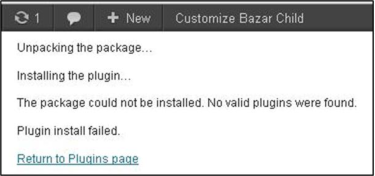
Q: I receive "The package could not be installed. No valid plugins were found" when trying to upload your plugin into my WP site (pic above)?
A: This is common error which means that the zip package which you're trying to upload doesn't contain required plugin files. In 99% cases this is happening because customers try to load the same bookingwizz_wp zip file which they download from codecanyon, which is wrong. You have to use FTP and upload the actual "bookingwizz_wp" folder to your wordpress plugins folder. Or if you want to use automatic installer like illustrated above - you need to unpack "bookingwizz_wp" folder to some place on your computer (just the bookingwizz_wp folder, not both folders which you will see inside the zip file) and then create zip file from just that "bookingwizz_wp" folder, and then load it through your wp admin site. Please refer to "Installation" part of this manual for more info on uploading through FTP.
Q: I see blank pages when I try to install BookingWizz, or when I try to access some pages in BookingWizz. What should I do ?
A: Say you've just uploaded your Bookingwizz program (or one of the addons) to your FTP files and it doesn't seem to be
working, you see blank pages. No need to panic; you have probably just encountered a corrupted
download. Although it’s frustrating, it happens quite often, and it’s not your fault.
Most of the times this is fixed by re-downloading the files from CodeCanyon. Re-download the files and re-upload them to your FTP, all except the /booking/includes/dbconnect.php (if BookingWizz was installed already).
If, however, downloading/re-uploading won't fix the issue, there may be a compatibility issue with the server and PHP errors are turned off in your case - you have to find error_logs (usually through the hosting control panel, or from hosting provider) and post them on our support forum in order for us to assist you.
Q: I keep getting the error that BookingWizz was not found in the path I specified (during BookingWizz WP addon activation).
A: As we explained at the beginning of this document, it is very important to upload your Bookingwizz application (and/or your addon) to the correct location. If you don’t, it won’t work properly.
Since you are planning to operate your Bookingwizz application on your wordpress site, you will need to upload/move the “booking” folder to your wordpress root folder. Then you will upload the Bookingwizz for Wordpress plugin into your Wordpress plugin folder. The path for this is: /wp-content/plugins. To refresh your memory, see the previous section on Installing Bookingwizz for Wordpress.
For example, if your wordpress site is installed in yourdomain.com/blog/ then you have to upload "booking" (BookingWizz standalone files) to yourdomain.com/blog/booking/ and then upload bookingwizz_wp folder to /blog/wp-content/plugins/ folder.
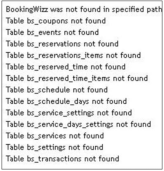
Q: I see a lot of "table xxx not found" errors on screen during the installation/activation, why is this happening (pic above) ?
A: Usually this happens when You purchase and upload Bookingwizz for Wordpress AFTER you have already been using Bookingwizz as a stand-alone program for sometime, or after you've already installed BookingWizz standalone version, into database separate from your wordpress site. If you see the following error, don’t panic, there are two (2) options: you can 1) either manually move all
bs_* tables from the standalone database to the new database where your wordpress is installed, or 2) you can change the /booking/includes/dbconnect.php database connection manually to continue using the standalone database instead of the new wordpress database. Of these two, Option #1 is the preferred method.
Q: After editing something in settings area I receive this error:
Language file .lang.php not found - Warning: constant() [function.constant]: Couldn' t find constant January in /home/chelcea/public_html/booking/includes/config.php on line 42
A: The language setting has somehow been reset on your site. Just login to your Phpmyadmin, then navigate to the booking database and find bs_settings table. Then edit the language field value to "English" (without quotes). That should solve the problem. Since v5.4 there is automatic language issue detection, if this error is encountered - it is fixed automatically.
Q: How do I translate emails which are coming from the system to the customer?
A: Go to /booking/emailTemplates/ - all files inside that folder are email templates which you can edit per your needs.
Q: Where can I update the email information so that my company’s name is in the “From” section? Currently, “Name” is in the "from" section, and this
is incorrect.
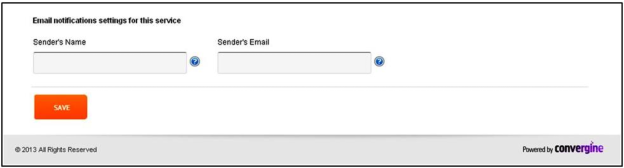
A: You can manage this information on a “per calendar” basis. First, login into your admin panel and open the settings of an already existing service. If you don’t have a service already in existence, create a new one to which you would like to add a name and an email. At the very bottom of service’s page you will find the “Email notifications settings for this service” (pic above) section which is in charge of a name and an email in notifications. Insert the desired name into the “Sender' s Name” field and the email address into “Sender's Email” field, then save the changes. Your customers will see them as “From” in all notifications associated with this service.
Q: Curl returns this error: “SSL certificate problem: unable to get local issuer certificate”. What's wrong?
A: In this case, the issue is definitely with your server. This issue happens with Curl on Windows servers running Parallels Plesk, where Curl does not find the CA bundle. The solution/fix is to add the path to the CA bundle to php.ini and to apply the appropriate permissions to PSAadmin to the folder which holds the ca-bundle.crt or ca-bundle.pem.
Q: I cannot upload a picture when I’m editing an event. Should the picture be a certain size?
A: Please make sure that the uploads folder (FTP -> root folder/booking/uploads/) has CHMOD 777 and check $baseDir in /booking/includes/dbconnect.php.
Q: How do I import and export my reservations from/to Excel?
A: At the moment, there is no such functionality. You can use phpMyAdmin -> export and select "export for ms excel" for table bs_reservations in Database, but it is only a one way communication (export only) and we cannot guarantee that it will work the same way for “import” since such functionality was not intended to be developed.
Q: My calendar stopped displaying after removing the default calendar.How can I fix this?
In latest version (v5.4) we have added automatic issue detection and fix, and option to set any calendar as default with a click of a button (in calendar settings).
Q: How do I go about changing the default calendar from a single-day service to a multi-day service?
A: The easiest thing to do it is to edit the calendar through phpMyAdmin and change calendar id to "1".
In latest version (v5.4) we have added option to set any calendar as default with a click of a button (in calendar settings).
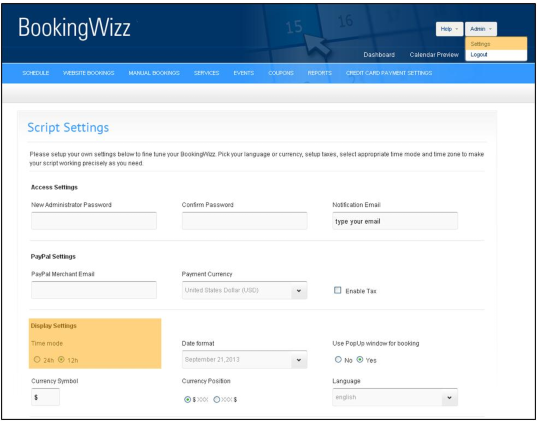
Q: How can I switch a 24-hour time mode to a 12 hour-time mode?
A: Go to your admin panel -> script settings section -> display settings section, select one of two time modes, and save changes (pic above)
Q: I've added some custom fields through the code, how can I make them required fields?
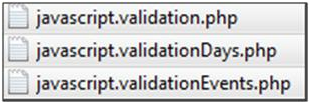
A: You will need to edit one of the following files:
These files are located inside of /booking/includes/ folder. Which file to edit
will depend on which booking form you would like to adjust.Basically you need to
add ID of the new field into
$reqFields=array(
"name",
"phone",
"email",
"captcha"
);
and make sure the field has the ID on the form.
Q: I want to include a unique reference number in my email to customers for each booking, so that for each order, the customer could print off their email and use it as an E-ticket.
A: Here's what you would need to do: Edit booking.processing.php or booking.event.processing.php. At the top of the code after require_once("includes/config.php"), add a new variable like
$random =rand(10000,999999);
This will create a random number between 10000 and 999999.
You can also add some random letters for uniqueness. Then search for sendMail($adminMail in that file, and above the “found” string, you will see the $data variable with various values. Edit it by adding another line like that and use $random variable as value.
The text on the left side is the short code which can be used in emailTemplates/timeBookingConfirmationAdmin.php (timeBookingConfirmationCustomer.php, eventBookingConfirmationAdmin.php,
eventBookingConfirmationCustomer.php) to send that variable to admin/customer.
Q: How can I remove the page title “BookingWizz v5.5” that shows up on every page?
A: Title tag can be edited in /booking/includes/header.php.
Q: How I can remove Covergine’s logo and the link that says “Powered by Covergine"?
A: The logo and link can be removed in /booking/includes/footer.php, we would appreciate if you would leave it though.
Q: How can I change the welcome message on index.php and the paragraph that follows?
A: All text strings can be edited in /booking/languages/english.lang.php.
Q: Where can I change the text that appears on email notifications?
A: The email notifications can be found in the /booking/emailTemplates/ folder. Open it with any code editor or notepad, edit the email, save, and upload to a site to the same directory.
Q: When I share an event on twitter - there is BookingWizz v5.5 in front of the tweet ! How do I remove it ?
A: BookingWizz v5.5 is the title of the page. If you will change title in /booking/includes/site.header.php to something else - that "something else" will be displaying instead of BookingWizz v5.5
Q: How can I access BookingWizz admin area ?
A: Go to yoursite.com/booking/admin.php (you have to replace yoursite.com with your actual domain name.)
Q: How to add manual EVENT booking ?
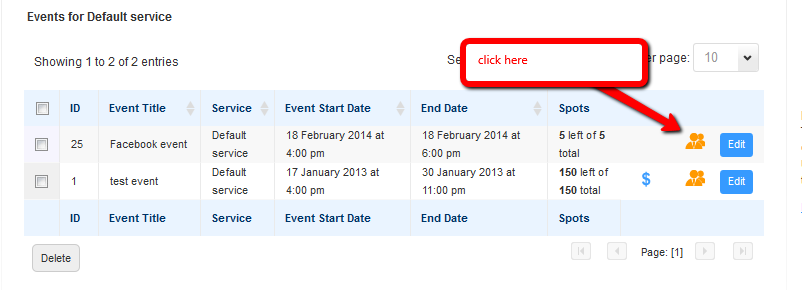
A: Go to events section in top menu. After refresh you will see table with events (if you don't see your event, try switching to different service in dropdown on the same page - most likely you've added your event to some other service). Now find event which you need to add manual booking and click on orange attendees icon, as on screenshot below:
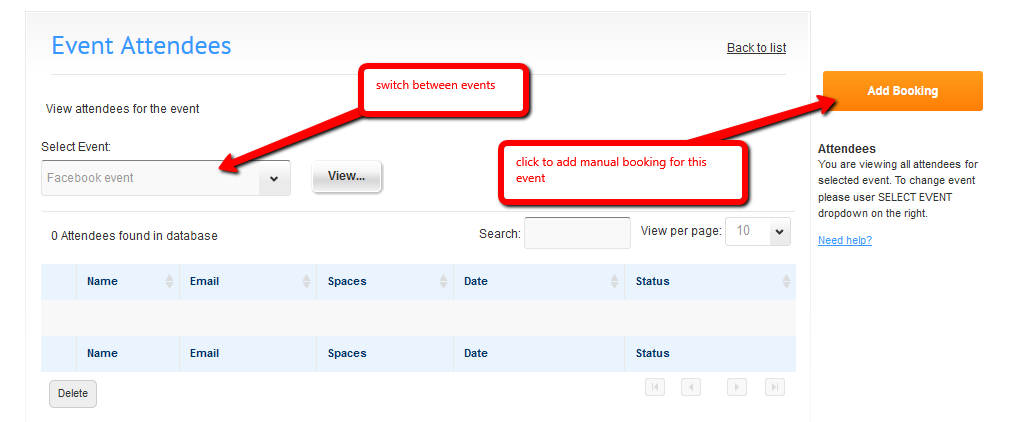
After next page will load you will see all attendees who already booked, and button to add new booking:
Q: What should I do if I click somewhere in BookingWizz and I get completely blank page on my screen?
A: You have to go to our support forums (http://support.convergine.com) and start new thread in BookingWizz forum. Make sure you explain STEP BY STEP what you did before you saw blank page. Also, it is VERY IMPORTANT to get server error log from your hosting provider - if you get blank page it means that there is an error but error display is turned off on the server - without error logs from your hosting provider we won't be able to assist.
Q: I don't see any "clickable days" on my single-day calendar! It's just month name and previous/next months links.
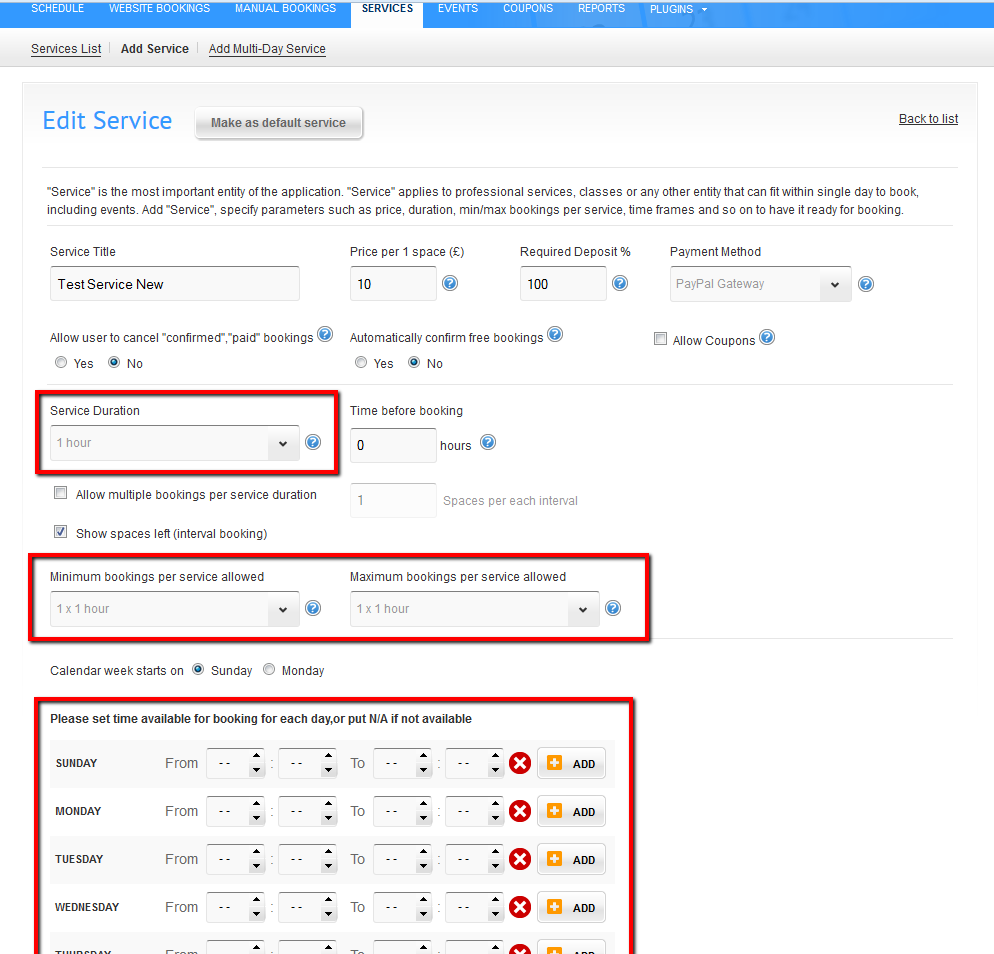
A: You have to setup schedule(availability) in calendar settings (see image below). We've highlighted the most important settings. When you will select the hourly interval and set work hours for at least 1 day a week - you will see "clickable" calendar days in your single day calendar.
Q: I would like to add HTML code in event description, however when I do that - html code is removed?
A: If you have bookingwizz version which has this issue - you just need to remove strip_tags() function in the header (top part of the file) of the bs-events-add.php so the adjusted line of code will look like this: